
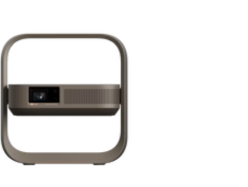
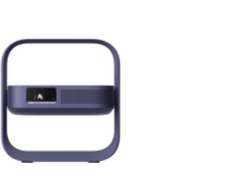
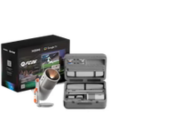


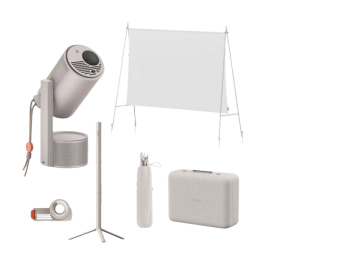
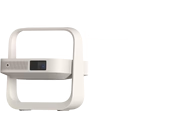
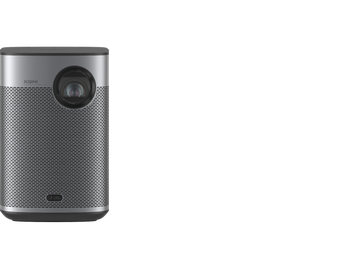
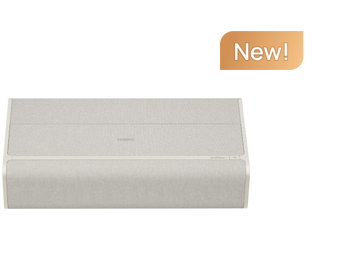
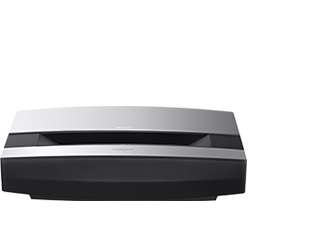
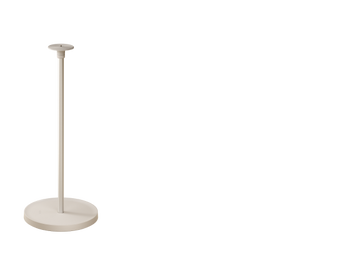
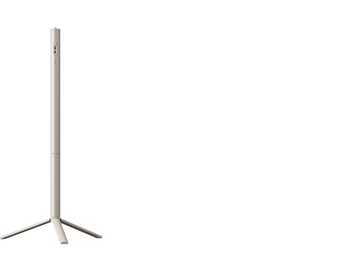
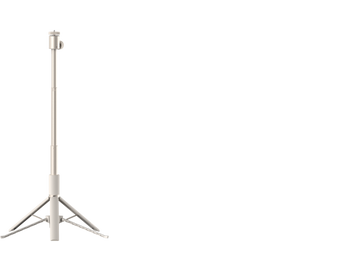
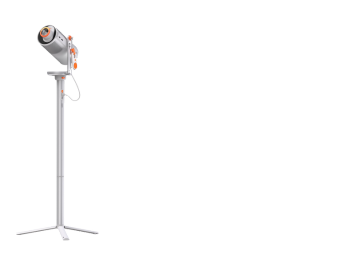
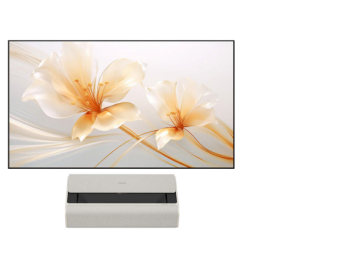





How do I power the MoGo 4 series on?
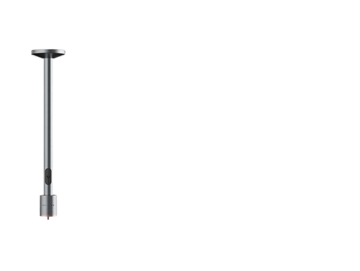
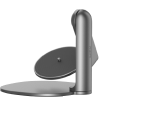
(a) Connect the power cable and wait for the indicator light to go out. (b) Pull up the projector to turn it on. (c) Rotate the projector.The projector enters viewing mode.
How do I power the MoGo 4 series off?
In the power-on state, press and hold the power button to shut it down.
How do I set up the projection?
UpdatedGo to "All Settings" -- "Projector" -- "Projection Type".
What is Eco Mode?
UpdatedAfter unplugged the adapter,the projector will enter ECO mode to increasing the using time automatically. ECO mode limits the screen brightness. It does not limit the volume.For increasing the using time,it's recommended to set the volume no more than 50% under ECO mode. Users can manually turn off Eco Mode by going to ""All Setting"" -- ""Display&Sound"" -- ""Picture"" -- ""Brightness Mode"" -- ""Eco Mode "".
Does the MoGo 4 series support HDR10?
Yes. The MoGo 4 series supports 1080P HDR10 decoding.
How do l enable automatic focus on the MoGo 4 series?
To enable automatic focus: 1. Press the "Focus" button on the XGIMI remote control to focus the image automatically; 2. Go to "All Settings" -- "Projector" -- "Focus" -- "Focus Settings" -- "Auto Focus on Startup-on/off"; "Auto Focus upon Motion-on/off".
How do I focus manually with the MoGo 4 series?
The MoGo 4 series supports both automatic and manual focus. Use the remote control focus button to focus: press and hold for manual focus. Use the left and right buttons of the D-pad for manual focus.
Does the MoGo 4 series support keystone correction?
Yes. The MoGo 4 series supports both automatic vertical and horizontal keystone correction and manual vertical and horizontal keystone correction ( ±25 Degrees), allowing users to set up their device where they desire with incredible ease. For further adjustment, please use the 4-point manual keystone correction feature. To enable automatic keystone correction: Go to "All Settings" -- "Projector" -- "Keystone" -- "Auto Keystone Correction".
Does the MoGo 4 series support Image Zoom?
Yes. The Image Zoom feature allows you to alter the MoGo 4 series's screen based on your specific needs. To enable Image Zoom: Go to "All Settings" -- "Projector" -- "Keystone" --"Image Zoom".
How to cast media sources from iPhone/iPad/Android phones/pad to MoGo 4 series via Google Cast?
The MoGo 4 series projector offers GoogleCast Built-in feature, feel free to cast your favorite entertainment apps - movies music, games, videos from your Android or iOS devices. (GoogleCast supported Apps). Open the media apps on the external devices and search for MoGo 4 series to connet via GoogleCast Built-in feature.
How to screen-mirror Android devices to MoGo 4 series?
The MoGo 4 series is equipped with the Official Google TV system, it allows customers to use the full Google service eco-system. Please download "Google Home” on the android devices and connect it to MoGo 4 series under the same WiFi signals, one-click on the screen-mirroring button at the homepage of Google Home app.
How to screen-mirror iOS devices to MoGo 4 series?
For iOS device users, you can screen mirror via below steps: 1. Please install "MagiCast" app from Google Play Store. 2. Start "MagiCast" on XGIMI MoGo 4 series. 3. Open "Cast Screen" in any iPhone/iPad/MacBook and make sure its under the same WiFi signal with the projector.
Does MoGo 4 series support screen mirroring with laptops/PCs?
Yes. The MoGo 4 series offers one HDMI port for external connection, which makes the screen mirroring much easier for any daily usage. For the wireless connections between MoGo 4 series & PCs/Laptops: 1. Please connect the PC & MoGo 4 series under the same WiFi signal. 2. Open the Chrome browser on the PC- click "Custmize & Control button" at the upper right corner-Save and share - cast - search for MoGo 4 series projector to connect.
Does MoGo 4 series support TV stick connection for media streaming?
es. The MoGo 4 series offers one HDMI port for external connection. Customers are free to install any TV stick for more streaming apps. Tip: The projector is equipped with a USB2.0 port, with an output voltage of 5V and an output current of 500mA. If it cannot meet the power supply requirements of your TV stick, please configure a separate power supply head for your TV stick.
How to switch HDMI Version on the MoGo 4 series?
On the HDMI signal source page, briefly press the [Settings] button on the remote to open the shortcut settings menu, then select the gear icon in the upper right corner to enter the full settings page. In the settings page, navigate to ""Inputs"", and select HDMI EDID Version to choose between EDID 1.4 or EDID 2.0.
What are the specific requirements for using an external power bank?
When using a third-party power bank or adapter, ensure that the output power is no less than 65W and meets the following power, current, and voltage requirements: 65W at 20V/3.25A and 100W at 20V/5A. It
Does the MoGo 4 series support USB or hard drive connections?
Due to GoogleTV's requirements, the system does not have a built-in FileManager. It's recommended to download FileManager directly from Google Play Store.
Does MoGo 4 series support external Bluetooth speakers/headphones?
es. The MoGo 4 series supports Bluetooth 5.1, allowing you to search and connect with any Bluetooth device. To begin pairing: 1. Go to All Settings. 2. Remote & Accessories. 3. Pair accessory.
How to use the MoGo 4 series as a Bluetooth speaker?
Under the atmosphere speaker mode,use your phone to search device name through Bluetooth to connect it.
Does MoGo 4 series support Amplifier?
Yes. MoGo 4 series offers HDMI ARC port for external connection, which makes the audio transferring much easier for any daily usage. Please connect the external device to the HDMI ARC port. While you are connecting the amplifier,Google TV will switch the sound output automatically.
Does MoGo 4 series support AUX (3.5mm)?
No, we don't support AUX(3.5mm).
How to connect WiFi ?
Pressing“Settings”button on remote to open the shortcut menu-- Wi-Fi.
How to install applications on MoGo 4 series?
XGIMI projector is equipped with the Official Google TV system, which offers 5000+ apps for daily entertainment. Customers are free to download any available apps from Google Play Store.In the "Apps" section of the navigation bar, you can search for and download applications.
Do I have to log into my Google account to use my XGIMI projector? How do l add/delete a Google account?
To complete the initial setup, please log into your Google account. After entering the Google TV UI homepage, please follow the steps below to add/delete a Google account: 1. Press "Profile"button on remote and enter Google account page. 2. Choose "Manage accounts". 3. Choose the account you already logged. 4. Choose "remove".
Can I navigate through the MoGo 4 series interface with a smartphone?
Yes. The MoGo 4 series is equipped with the official Google TV system. Therefore, the "Google Home" app is a better option: Please download the "Google Home" app on your phone and pair it with MoGo 4 series, using the same WiFi connection. You can then use your phone as a remote.
Can I flash in the firmwares of other models?
No.
Please don't install any firmware which is not adapted for MoGo 4 series.
For further instructions, please contact XGIMI service team.
How to update the MoGo 4 series firmware?
The MoGo 4 series will send a push notification of new firmware updates on the homepage or the shortcut menu page. Select "Details" to begin updating the firmware. If the notification is dismissed, please follow the steps below to check for new updates: 1. Please ensure your WiFi connection is stable. 2. Go to "All Settings" -- "System" -- "About" -- "System Update" -- "Check for update". Tip: Please avoid stopping the update process or disconnecting the WiFi until it is complete.
How to check the MoGo 4 series's system information?
Go to"All Settings" -- "System" -- "About". There, you'll find the Device name, Model, Status (serial numbers), and Software Version (firmware version).
Does the MoGo 4 series have the built-in battery?
Yes, it has a built-in 71.28Wh battery,
How do I set up 3D mode on the MoGo 4 series?
The MoGo 4 series does not support 3D.
Does MoGo 4 series prosupport CEC feature?
Yes. To enable the CEC feature: Go to "All Settings" -- "Inputs" -- "HDMI Control-on/off"; "Device auto power off-on/off"; "TV auto power on-on/off" After enabling, MoGo 4 series can be powered on by other remote controls via the CEC feature.
Can the eye protection (MoGo 4 series) feature be turned off?
Go to "All Settings" -- "Projector" -- "Auto Eye Protection-on/off".
How to pair XGIMI Bluetooth remote control?
1. Please place the remote control within 10cm of the device. 2. Press the “Back” and “Home” buttons on the remote control simultaneously until the indicator light begins flashing. This means that the remote control has entered the pairing mode. 3. When a "Ding" sound is heard, the connection is successful. Note: If the pairing fails, it will exit after 30 seconds, please repeat the above steps after the exiting.
XGIMI remote control guide
The XGIMI remote makes everything simple:
A. Power button: turn on/off via simple one-click.
B. Streaming media button: quickly open streaming media app.
C. Profile button: enter Google account Switch page.
D. Back button: quickly directs you back to a previous screen.
E. Google Assistant button: with the official Google TV system, you are able to use the Voice control to search everything conveniently.
F. Shortcut button: switch the atmosphere light under the atmosphere mode.
G. Input button: enters HDMI resource page.
H. Focus button: enables the autofocus feature; press and hold to enter the manual focus page.
I. D-Pad: provides simple navigation through the XGIMI UI.
J. Home button: returns to the home page from any screen.
K. Settings button: shortcut for projector setups--Screensaver/Inputs/Picture Settings/Sound Settings/Wi-Fi/Accessibility/All Settings.
switchL/M. Volume button: adjusts volume up/down.
Which devices do you need help with
Get support, find answers, download drivers, manuals, and more!


