
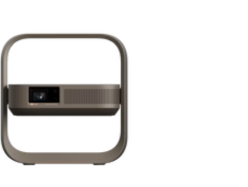
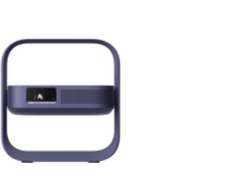
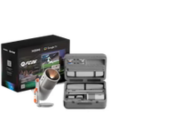


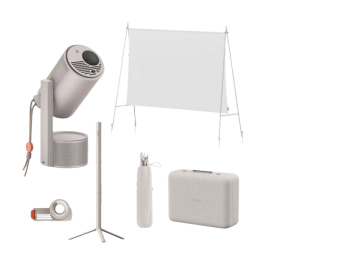


Unlock the Full Potential of YourMoGo 3 Pro


Screen Mirroring
How to Screen Mirror iOS or Android Devices to MoGo 3 Pro?

Bluetooth Connection
How to Use the MoGo 3 Pro as a Bluetooth Speaker?

App Usage
How to Install Applications on MoGo 3 Pro?

Extra Tips
Other FAQs about Using MoGo 3 Pro
Watch Our Video Tutorials!
How to Screen Mirror iOS Devices to XGIMI MoGo 3 Pro

1. Download Magicast
On the MoGo 3 Pro, go to the "Apps" section. Search for and download the Magicast app.

2. Enable Permissions
After installing Magicast, launch it for the first time. Grant permission to allow the app to display over other apps.

3. Open Magicast
Keep the MoGo 3 Pro on the Magicast page.

4. Connect to Wi-Fi
Ensure both your iPhone and MoGo 3 Pro are connected to the same Wi-Fi network.

5. Enable Screen Mirroring on iPhone
Open the Control Center on your iPhone. Tap Screen Mirroring.

6. Select the Device
Choose the device name from the list in Screen Mirroring. (The default device name for MoGo 3 Pro is G005.)
- Ensure the projector is on Magicast page and both devices are connected to the same Wi-Fi network.
- Agree to all permissions during Magicast installation; reinstall if necessary.
- Use a stable 5G Wi-Fi signal from a nearby router.
- Black screens or distortions in apps may occur if mirroring is disabled by the app.
- For Google Home, log in with the same Google account on both devices, update the app, and agree to permissions.
- Update all apps on the projector via Google Play Store.

How to Mirror Your Android Devices to XGIMI MoGo 3 Pro

1. Download the Google Home App:
Open the Google Play Store on your phone and search for "Google Home". Download and install the app.
2. Make sure your Phone and the projector are connected to the same Wi-Fi network.


3. Open the "Google Home" app on your phone, tap on the device name under "Devices" and then select "Cast my screen".
(The default device name for MoGo 3 Pro is G0035)


4. Finally, click "Cast screen" in the pop-up window to successfully mirror your screen.
Enjoy a smooth screen-mirroring experience with your MoGo 3 Pro!
Other Questions about Connections:
The MoGo 3 Pro supports Bluetooth 5.1, allowing you to search for and connect your Bluetooth speakers or Bluetooth headphones.
To begin pairing:
- In the "Settings" menu, select "Remote & Accessories".
- Choose "Pair accessory" in the "Remote & Accessories".
- The projector will begin searching for Bluetooth devices. Ensure the device is also in pairing mode.


Important Notes:
- Ensure the Bluetooth speaker or headphones are in pairing mode.
- Clear Bluetooth histories on both devices.
- Keep devices within 5 meters and avoid walls.
- Ensure smart devices allow Bluetooth connections from others.
The MoGo 3 Pro offers one Micro HDMI port for external connection.

You can connect the projector to a computer or game console using an HDMI to Micro HDMI cable.

Important Notes:
- Use a bi-directional HDMI to Micro HDMI cable (~2m length recommended).
- If using a single-directional cable, ensure the Micro HDMI end is the receiving end.
- Connect directly whenever possible (avoid converters).
- Activate Atmosphere Speaker Mode: Tilt the projector vertically.
- Connect via Bluetooth: Open phone Bluetooth, search "G0035", and connect.
- Play Music: Use your phone to play music through MoGo 3 Pro.
- Adjust Light Colors: Use the shortcut key on the remote.
Step-by-step visual guide:

Important Notes:
- MoGo 3 Pro is discoverable only in Atmosphere Speaker Mode.
- Clear Bluetooth histories on both phone and projector.
- Keep devices within 5 meters and avoid walls.
How to Install Applications on MoGo 3 Pro?
MoGo 3 Pro is equipped with the Official Google TV system, which offers 5000+ apps for daily entertainment.

After logging into your Google account on the MoGo 3 Pro, you can search for and download the apps you want to use in the "Apps" section of the navigation bar.
How to Play Videos from a USB Drive on MoGo 3 Pro?
MoGo 3 Pro using Google TV system does not come with a built-in file manager, so you can't directly access and play videos from a USB drive. Therefore, you need to download a third-party player from the Google Play Store.VLC Playeris highly recommended.
1. Search and download VLC Player in the "Apps" section of the navigation bar


2. After installing it, when you use it for the first time, you will need to agree to allow VLC Player to access and manage your files.


3. After installing VLC Player, insert your USB drive into the MoGo 3 Pro, and you will be able to access the contents of the USB drive within VLC Player.
- The device only supports external hard drives that are under 4TB, and the loading time will vary based on how many files are on the drive.
- USB drives and hard drives must be in NTFS or FAT32 format.
- The MoGo 3 Pro cannot play 4K videos. It is a 1080p projector.
- Besides VLC Player, you might want to download MX Player or Kodi Player as alternatives.
- Make sure to agree to the permission requests when you install the player for the first time.
Extra Tips You Might Be Interested In
Keeping your MoGo 3 Pro updated with the latest firmware ensures optimal performance and unlocks new features. Follow these steps to check for and install updates:
- Ensure a Stable Wi-Fi Connection: Verify that the projector is connected to a stable Wi-Fi network.
- Check for Updates: Navigate to: All Settings → System → About → System Update → Check for Update.
- Install the Update: If an update is available, follow the on-screen instructions to complete the process.


Tip: Avoid interrupting the update process or disconnecting the Wi-Fi until the update is fully installed.
To ensure a better user experience with your apps, it's recommended to check for updates for the software installed on your MoGo 3 Pro.
- Open Google Play Store: There are two ways to do this:
- Go to "Settings," find "Apps," then locate the app details for "Google Play Store," and click on “Open”.
- Press and hold the voice button on the remote and say, “Open Google Play Store”.
- In the Google Play Store, click on the icon in the upper right corner.
- Choose “Updates” to update your installed apps.


The MoGo 3 Pro has a Type-C power port, which means you can use an external power bank to supply power to it. The key point when using a power bank is to pay attention to the output power of the power bank's single port.
- If it’s ≥65W, it should be used in Eco mode with voltage/current meeting standard PD protocol requirements as follows: 65W: 20V/3.25A, 100W: 20V/5A.
- If it’s 100W (20V/5A), we suggest using Type-C power cables with an E-mark.
Here is some reference information; for more details about power banks, it’s recommended to contact the customer service of the respective brand.

Eco Mode helps safeguard the projector from potential damage caused by unexpected power interruptions.
Because power bank models and protocols vary, not all can reliably power the projector. Eco Mode addresses this by reducing screen brightness to 40%.
To turn off Eco Mode manually:
- Navigate to All Settings → Display & Sound → Picture → Brightness Mode.
- Switch from Eco Mode to Standard Mode.


Tip: Standard Mode consumes more power than Eco Mode.