
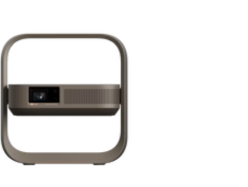
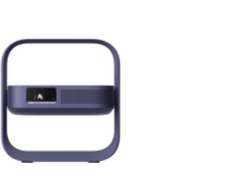


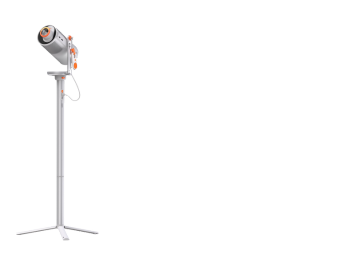
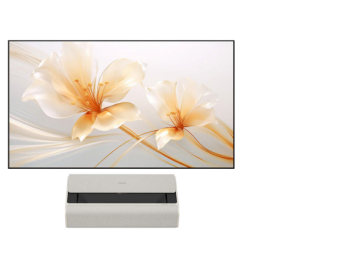



Beginner Guide to Using Elfin Flip
-
 Screen Mirroring
-
 App Usage
-
 Bluetooth Connection
-
 System Upgrade
Beginner Guide to Using Elfin Flip
-
Screen Mirroring
-
App Usage
-
Bluetooth Connection
-
System Upgrade
Video Tutorials
Screen Mirroring
How to Screen-mirror iOS Devices to Elfin Flip?
For iOS device users, you can screen mirror via below steps:

1. On Home Page, click "All apps", then select "Projection assistant".

2. Select "MagicCast" and stay on this page. Connect your iPhone and Elfin Flip to the same Wi-Fi network.

3. Open the Control Center and click the "Screen Mirroring" on your iPhone.

4. Select the device name ("My Elfin Flip" for Elfin Flip) to successfully mirror your screen.
How to Screen-Mirror Android Devices to Elfin Flip?
For Android device users, you can screen mirror via below steps:

1. On Home Page, click "All apps", then select "Projection assistant".

2. Select "Miracast" and stay on this page.

3. Open Android settings, select Cast or Wireless display.
(You can search for "Cast" or "Wireless display" in the Android settings)

4. Select the device name ("My Elfin Flip" for Elfin Flip) to cast.

5. After clicking on the device name, you will successfully mirror your screen.
① Make sure the projector is on the MagicCast/Miracast page.
② Connect the projector and phone to the same Wi-Fi network, preferably a 5G signal from a nearby router.
③ Black screens or distortion on iPhone may occur if the app disables mirroring.
④ Android users should enable screen mirroring in system settings.
Guidelines about HDMI and DLNA Connections
The Elfin Flip offers DLNA feature, feel free to cast your favorite entertainment apps - movies, music, videos from your Android or iOS devices (DLNA supported Apps).
Steps:
1. Click "All apps", then select "Projection assistant" on Home Page.

2. Select "DLNA" and stay on this page.

3. Ensure your phone and projector are on the same network.

4. Open the media apps on the external devices and search for Elfin Flip to connect via DLNA feature. (The default device name for Elfin Flip is My Elfin Flip)
Important Notes:
- Ensure the projector is on the DLNA page.
- Connect the projector and phone to the same Wi-Fi network, preferably a 5G signal.
- Use a video app that supports DLNA to locate the projector's signal.
- If the app lacks DLNA, access its website via the projector's "Open Browser".
Elfin Flip offers one HDMI port for external connection. You can connect the projector to a computer or game console using an HDMI cable.

- It's recommended to use a bi-directional HDMI cable, ideally 2 meters long, to avoid signal loss.
- For one-way cables, connect the receiving end to the projector.
- Connect the projector directly to the computer and avoid converters if possible.
App Usage
How to Install Applications on Elfin Flip?
The Elfin Flip runs on XGIMI OS and has a built-in XGIMI App Store for downloading apps.

1. Click on "All apps" from the home screen and then select "App Store".

2. Download any apps that interest you in the "App Store".
Other FAQs about App Usage
The Elfin Flip has a built-in Open Browser that uses the Chrome engine. If you can access a video website on your phone or computer via the Chrome browser, you can also access it on the Elfin Flip using the built-in Open Browser. Here’s how:
1. Click "All Apps", then select "Open Browser" on the Home Page.

2. Move up to access the address bar on the "Open Browser" page.

3. Enter the website URL to access the desired video site in the address bar.

1. Refer to "How to update the Elfin Flip firmware?" to ensure that the firmware version of the Elfin Flip is upgraded to V1.3.4 or higher.

2. Once the firmware is updated to V1.3.4 or above, you can download and install "Disney+" from the "App Store".

3. After the installation of "Disney+" is complete, you can click on it from the projector's home screen to use it.

The Elfin Flip has a USB port that you can use to play videos from a USB drive.
1. Click "Resource management" on Home Page.

2. In the "Resource Management" page, select the inserted USB drive or hard drive, and then you can choose the video you want to play.

① The device only supports external hard drives that are under 4TB, and the loading time will vary based on how many files are on the drive.
② USB drives and hard drives must be in NTFS, FAT32 or exFAT format.
Bluetooth Connection
How to Use the Elfin Flip as a Bluetooth Speaker?

1. Click "All Apps" on Home Page.

2. Select "Bluetooth music" and Stay on This Page.

3. Search the Device Name ("My Elfin Flip" for Elfin Flip) via Bluetooth on Your Phone to Pair.
Make sure the final Bluetooth status shows as "Connected". This indicates that the Bluetooth connection is successful.

4. Once Connected, Play Your Favorite Music and Enjoy!
Click on the music you want to play on your phone, and the projector will play the music accordingly.
① Make sure the projector is on the Bluetooth music page.
② Clear Bluetooth histories on both your phone and the Elfin Flip.
③ Keep the devices within 5 meters and avoid walls.
④ Ensure "Bluetooth discoverable" is enabled in the "Settings" → "Bluetooth & Accessories".
Other FAQs about Bluetooth Connection
The Elfin Flip supports Bluetooth 5.1, allowing you to search for and connect your Bluetooth speakers or Bluetooth headphones. To begin pairing:
1. Select "Bluetooth & Accessories", then click on "Add more devices" in the "Settings" menu.

2. Once you click "Add more devices" the projector will begin searching for Bluetooth devices. Ensure that the Bluetooth device you want to connect is also in pairing mode so that the projector can find and connect to it.

① Ensure the Bluetooth speaker or headphones are in pairing mode.
② Clear Bluetooth connection histories on both the Elfin Flip and the speaker/headphones for better pairing.
③ Keep the distance between devices under 5 meters and avoid obstacles like walls.
④ Check smart devices to ensure Bluetooth connections are not blocked.
System Upgrade
How to Update the Elfin Flip Firmware?
It's a good idea to update the projector to the newest firmware version for better performance.
Please follow the steps below to check for new updates:
1. Make sure your WiFi connection is stable.

2. Go to "All Settings" -- "General" -- "About"

3. Click the "System update"

4. Click the "Online update" -- "Check for updates".
5. Do not stop the update process or disconnect the WiFi until it is complete.
